


Lag-free streaming is crucial for enjoying your favorite movies, shows, and games without frustrating interruptions. Many factors can impact streaming quality, but a well-optimized home network is fundamental to achieving that buffer-free bliss. This article explores several practical methods to enhance your home network performance, minimizing lag and maximizing your streaming experience in 2026 and beyond.
Optimize Your Router Placement
Router placement is a frequently overlooked aspect of home network optimization. The location significantly affects the signal strength and coverage area. Placing your router in a central, elevated, and open location can drastically improve wireless performance. Avoid placing it near walls, metal objects, or electronic devices that can interfere with the signal. Ensure the router is away from microwave ovens or Bluetooth devices, as these operate on similar frequencies. By strategically positioning your router, you can minimize dead zones and provide a stronger, more consistent Wi-Fi signal to all your devices.
Experiment with different locations to find the optimal spot. You can use Wi-Fi analyzer apps on your smartphone or computer to measure signal strength in various areas of your house. Ideally, the router should be in plain sight, not hidden inside a cabinet or tucked away behind furniture. A central location allows the signal to propagate evenly throughout your home. Consider the layout of your home and the locations where you most frequently stream content when determining the best placement. Consulting resources like the FCC’s guide on wireless routers can provide additional insight into optimal router positioning.
Upgrade Your Router Hardware
An outdated router can be a major bottleneck in your home network, especially with the increasing demands of high-definition streaming. If your router is several years old, consider upgrading to a newer model that supports the latest Wi-Fi standards, such as Wi-Fi 6 or Wi-Fi 6E. These standards offer faster speeds, increased capacity, and improved performance in congested environments. Look for routers with multiple antennas and MU-MIMO (Multi-User, Multiple-Input and Multiple-Output) technology, which allows the router to communicate with multiple devices simultaneously without slowing down. Investing in modern hardware is crucial for ensuring a smooth and reliable streaming experience.
The RAM and processor within the router are just as important as the Wi-Fi standard. A router with faster processing power can handle more simultaneous connections and traffic without experiencing performance degradation. Research and compare different router models based on their specifications and user reviews. Consider a mesh Wi-Fi system if you have a large home or experience dead zones. Mesh systems use multiple nodes to create a seamless Wi-Fi network, providing consistent coverage throughout your entire property. Leading tech review sites like CNET and PCMag offer in-depth router reviews to aid in your selection process. In 2026, Wi-Fi security is more important than ever, so ensure your router supports WPA3 encryption.
Mesh Wi-Fi Systems
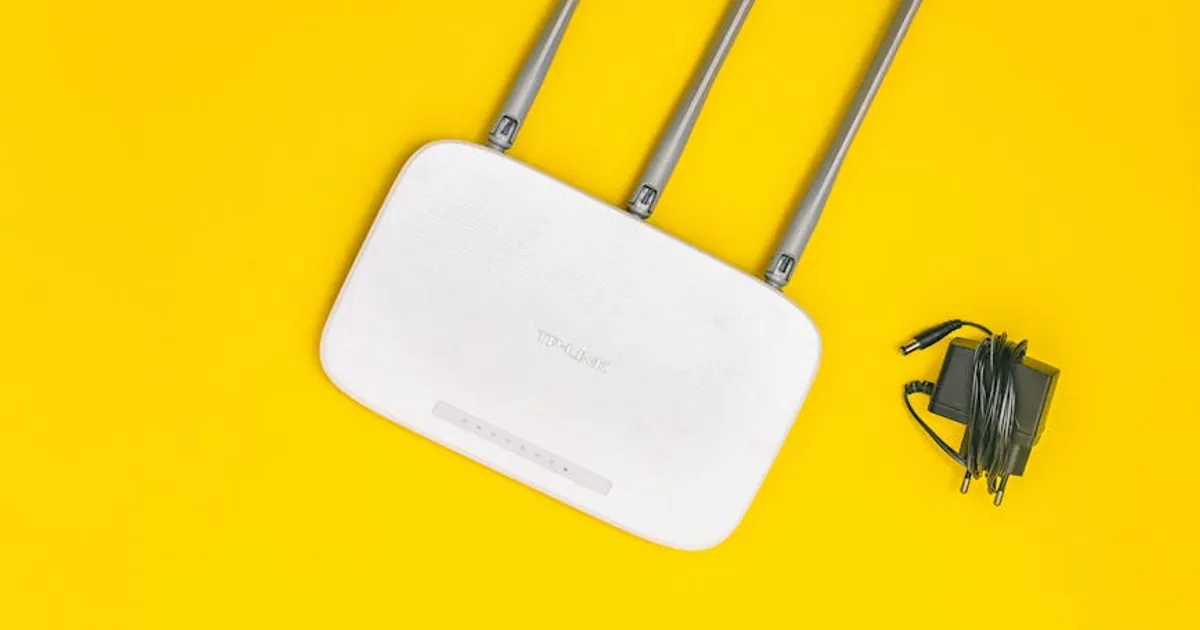
Mesh Wi-Fi systems offer a unique solution for improving network coverage and performance, particularly in larger homes or those with challenging layouts. Unlike traditional range extenders, which can create separate Wi-Fi networks and reduce bandwidth, mesh systems create a single, unified network that allows devices to seamlessly roam between nodes. This ensures a consistent and reliable connection throughout your home, without the need to manually switch between networks. Mesh systems are relatively easy to set up and manage, often through a mobile app, making them an accessible option for users of all technical skill levels.
Prioritize Streaming Devices with QoS
Quality of Service (QoS) is a feature available on many routers that allows you to prioritize network traffic. By configuring QoS settings, you can ensure that streaming devices receive preferential treatment, minimizing lag and buffering. Identify the devices you use primarily for streaming, such as your smart TV, gaming console, or streaming box, and assign them a higher priority in the QoS settings. This will ensure that these devices receive the bandwidth they need, even when other devices on your network are heavily utilizing the internet connection. Consult your router’s manual or online resources for instructions on configuring QoS settings.
Effectively using QoS can significantly improve the streaming experience, especially during peak usage times when multiple devices are competing for bandwidth. It is important to understand your router’s QoS settings and properly configure them to achieve the desired results. Some routers offer automatic QoS features that automatically prioritize certain types of traffic, such as video streaming and gaming. However, manual configuration typically provides greater control and customization. Experiment with different settings to find the optimal configuration setup for your specific network and streaming needs.
Wired Connections for Demanding Devices
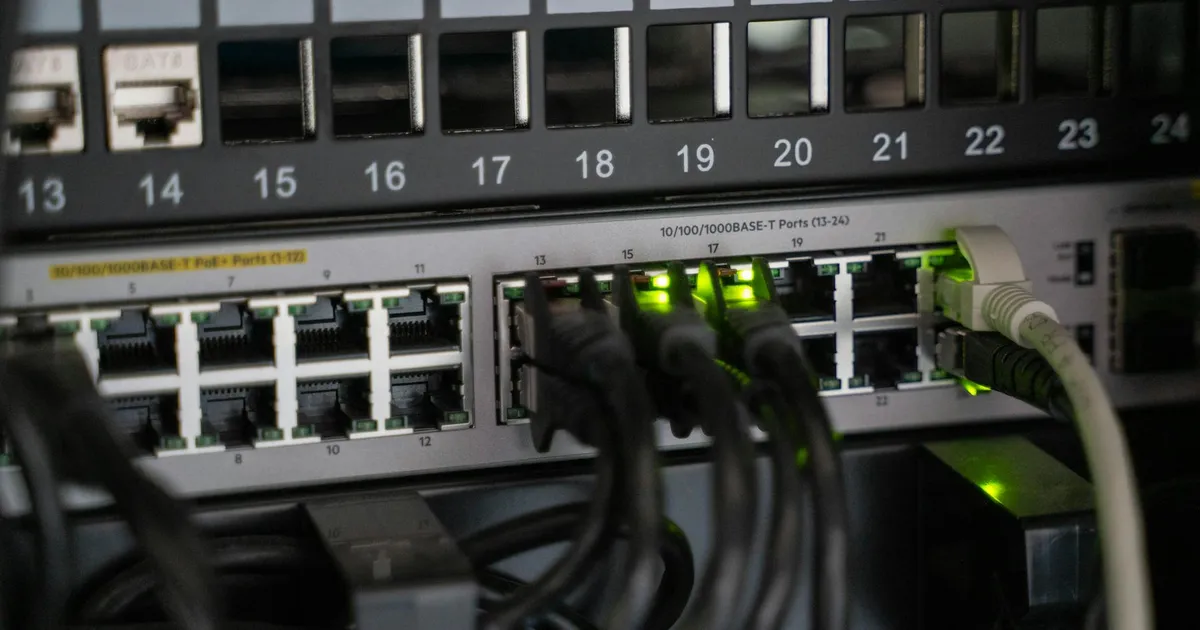
While Wi-Fi has become increasingly prevalent, a wired Ethernet connection remains the most reliable and fastest way to connect devices to your home network. For devices that require high bandwidth and low latency, such as smart TVs, gaming consoles, or desktops used for video editing, consider using a wired connection. Ethernet cables provide a direct, dedicated connection to your router, eliminating the potential interference and limitations of Wi-Fi. This can significantly improve streaming performance and reduce lag, especially when streaming high-resolution content or playing online games. Wired connections provide consistent and stable bandwidth.
To create a wired connection, simply connect an Ethernet cable from your device to an available port on your router or switch. Ensure that you are using a Cat5e or Cat6 Ethernet cable for optimal performance. While running Ethernet cables throughout your home may require some effort, the benefits in terms of improved network performance are often worth it. Consider using powerline adapters if running cables is not feasible. Powerline adapters use your home’s electrical wiring to transmit network data, providing a wired connection without the need for physical cables. However, performance can vary depending on the quality of your home’s electrical wiring, so be sure you are testing before using.
Reduce Interference and Network Congestion

Interference from other devices and network congestion can significantly impact the performance of your home network. To minimize interference, keep your router away from electronic devices that emit radio frequencies, such as microwave ovens, cordless phones, and Bluetooth devices. Regularly restart your router to clear its cache and optimize its performance. Limit the number of devices connected to your Wi-Fi network simultaneously, especially during peak usage times. Consider using a separate Wi-Fi network for guest devices to prevent them from consuming bandwidth and impacting the performance of your primary network.
Identifying and addressing the source of network congestion is essential for improving streaming performance. Use network monitoring tools to identify devices that are consuming excessive bandwidth. Close unnecessary applications and background processes that may be utilizing the internet connection. Consider upgrading your internet plan to a higher bandwidth tier if you frequently experience network congestion. By taking steps to reduce interference and network congestion, you can create a more stable and reliable network environment for streaming and other bandwidth-intensive activities.
Regularly Update Firmware and Software
Keeping your router’s firmware and your devices’ software up to date is crucial for maintaining optimal network performance and security. Firmware updates often include performance improvements, bug fixes, and security patches that can enhance the stability and reliability of your network. Similarly, software updates for your streaming devices can improve compatibility and ensure that you are taking advantage of the latest features and optimizations. Check your router’s manufacturer website or management interface for firmware updates regularly. Enable automatic updates on your streaming devices to ensure that they are always running the latest software.
Outdated firmware and software can introduce vulnerabilities that can be exploited by hackers, compromising the security of your network and devices. Regularly updating firmware and software helps to protect your network from potential threats. Many routers now offer automatic firmware update features, which automatically download and install updates when they become available. However, it is still a good idea to periodically check for updates manually to ensure that you are not missing any important patches. This remains a crucial step, even in 2026, for optimal safety and performance.
Key Takeaways
- Optimize router placement for maximum signal coverage.
- Upgrade to a modern router supporting Wi-Fi 6/6E.
- Use QoS settings to prioritize streaming devices.
- Employ wired connections for bandwidth-intensive devices.
- Minimize interference and address network congestion.
- Keep firmware and software updated on all devices.
Frequently Asked Questions
Why is my streaming constantly buffering?
Buffering can be caused by various reasons, including a slow internet connection, a weak Wi-Fi signal, network congestion, or outdated hardware. Try troubleshooting your network by checking your internet speed, optimizing your router placement, and closing unnecessary applications on your devices.
What is the best Wi-Fi channel to use?
The best Wi-Fi channel depends on your environment. Use a Wi-Fi analyzer app to identify the least congested channel in your area. Channels 1, 6, and 11 are commonly used on the 2.4 GHz band, but other channels may be less crowded. On the 5 GHz band, there are more channels available, which can reduce interference.
How can I improve my Wi-Fi signal strength?
Improve your Wi-Fi signal strength by optimizing your router placement, upgrading your router, and reducing interference from other electronic devices. Consider using a Wi-Fi extender or a mesh Wi-Fi system to extend the coverage area of your network.
Should I use 2.4 GHz or 5 GHz Wi-Fi?
The 2.4 GHz band offers longer range but slower speeds, while the 5 GHz band offers faster speeds but shorter range. Use the 5 GHz band for devices that are close to the router and require high bandwidth, such as streaming devices and gaming consoles. Use the 2.4 GHz band for devices that are further away from the router or do not require high bandwidth, such as smart home devices and printers.
How often should I restart my router?
Restarting your router periodically, ideally once a week or every few weeks, can help to clear its cache and optimize its performance. Restarting can resolve minor issues and improve the overall stability of your network. If you are experiencing frequent connectivity problems, restart your router more often. It has been shown that scheduled restarts during off-peak hours can preempt possible connectivity issues.
Conclusion
Optimizing your home network for lag-free streaming involves a multifaceted approach, encompassing router placement, hardware upgrades, traffic prioritization, and interference reduction. Implementing these practical methods can significantly enhance your streaming experience, allowing you to enjoy your favorite content seamlessly. By regularly maintaining and optimizing your network in 2026, you can ensure a smooth and reliable connection for all your devices, regardless of the bandwidth demands. Always test new setups to achieve maximal signal strength and low ping times.