

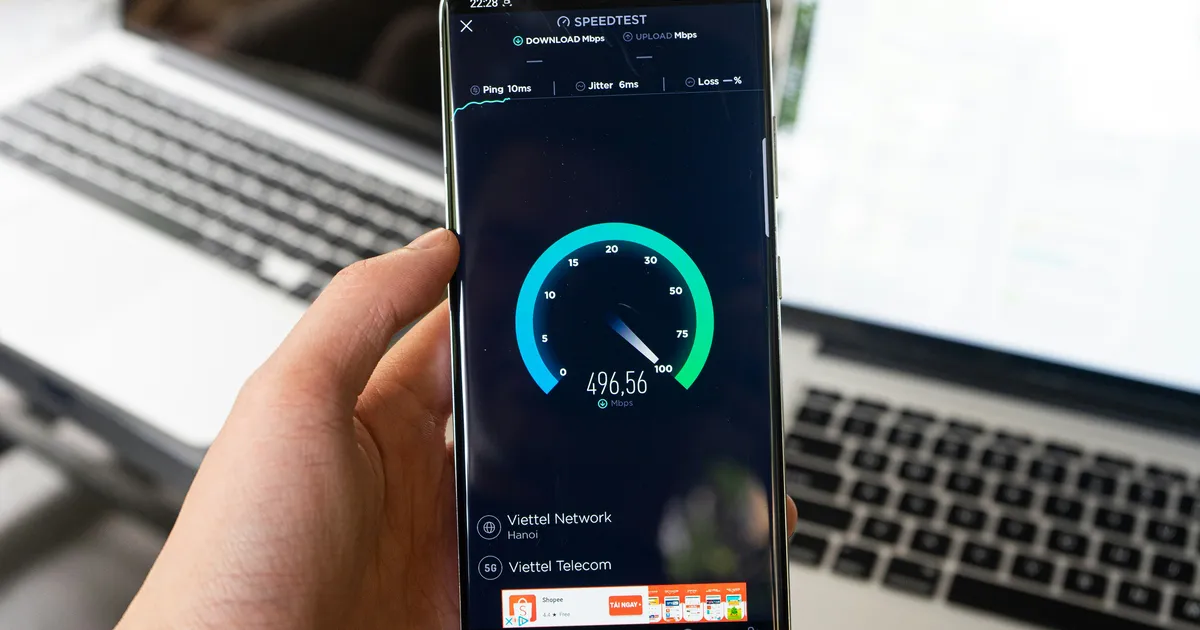

Optimizing your Wi-Fi speed for stable internet performance is crucial for seamless streaming, quick downloads, and lag-free online gaming, especially as our reliance on connected devices increases in 2026. While basic troubleshooting steps like rebooting your router are helpful, advanced techniques can significantly boost your network’s efficiency. This article delves into expert strategies for maximizing your Wi-Fi speeds and creating a more reliable and faster online experience. We’ll explore everything from optimizing your router placement to leveraging advanced QoS settings and upgrading to the latest Wi-Fi standards, ensuring you get the most out of your internet connection. Understanding these techniques will empower you to take control of your home network.
Optimize Router Placement for Maximum Coverage
The physical location of your Wi-Fi router dramatically impacts network coverage and speed. Placing it in a central, elevated, and unobstructed location is key. Avoid corners, enclosed spaces like closets, and positioning near metal objects or appliances like microwaves that can interfere with the signal. Walls and furniture can also weaken the signal, so aim for a direct line of sight between your router and your devices. Experiment with different locations in your home to find the spot that provides the strongest signal strength throughout the entire space. Consider using a Wi-Fi analyzer app on your smartphone or tablet to map your network coverage and identify weak spots.
Beyond the ideal location, consider the orientation of the router’s antennas. Most routers have adjustable antennas, and proper positioning can improve signal direction and strength. Experiment with different antenna orientations – vertical, horizontal, and angled – to find the configuration that yields the best results for your specific home layout. In multi-story homes, angling one antenna upwards and one downwards can sometimes improve coverage across different floors. Small adjustments can result in a noticeable improvement in Wi-Fi performance, especially for devices located on the fringes of your network’s range.
Upgrade to the Latest Wi-Fi Standard
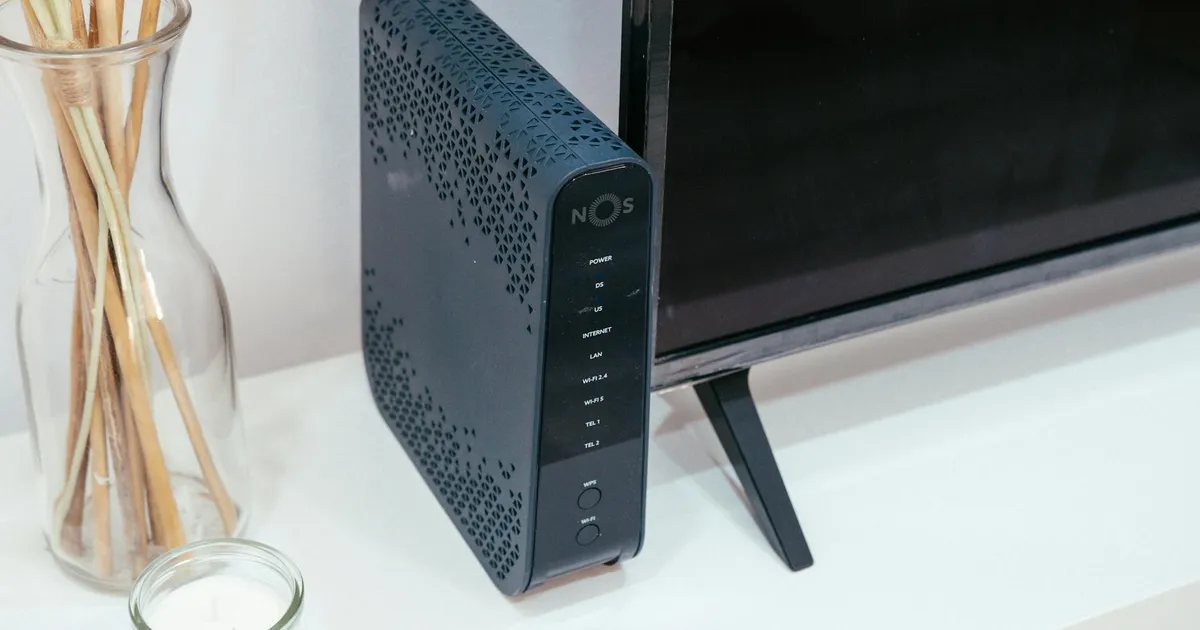
Wi-Fi technology continues to evolve, with each new standard offering improved speeds, bandwidth, and efficiency. Upgrading to a router and devices that support the latest Wi-Fi standard, such as Wi-Fi 6 (802.11ax) or even Wi-Fi 7, can significantly boost your network performance. These newer standards utilize technologies like Orthogonal Frequency Division Multiple Access (OFDMA) and Target Wake Time (TWT) to improve efficiency and reduce latency, resulting in faster speeds and better battery life for connected devices. Before upgrading, ensure that your devices are also compatible with the new standard to take full advantage of its benefits.
It’s important to remember that upgrading only your router won’t magically speed up older devices that don’t support the new Wi-Fi standard. While they will still be able to connect, they won’t experience the full potential of the upgraded network. Consider gradually upgrading your devices over time, starting with the ones that require the most bandwidth, such as your streaming devices, gaming consoles, and laptops. Researching the capabilities of your devices ensures you are making informed decisions about your network upgrades. For more information on Wi-Fi standards, you can explore resources like the Wi-Fi Alliance website at https://www.wi-fi.org/.
Optimize Your Router’s Channel and Bandwidth
Wi-Fi routers operate on specific channels within the 2.4 GHz and 5 GHz frequency bands. These channels can become congested, especially in densely populated areas with many Wi-Fi networks. Using a Wi-Fi analyzer app, you can identify the least congested channels in your area and manually configure your router to use those channels. This can significantly reduce interference and improve network performance. Furthermore, consider using the 5 GHz band whenever possible, as it offers more channels and is less prone to interference than the 2.4 GHz band.
Beyond channel selection, you can also optimize your router’s bandwidth settings. Most routers allow you to choose between 20 MHz and 40 MHz bandwidth on the 2.4 GHz band, and 20 MHz, 40 MHz, 80 MHz, or 160 MHz on the 5 GHz band. While wider bandwidths can theoretically provide faster speeds, they are also more susceptible to interference. Experiment with different bandwidth settings to find the optimal balance between speed and stability for your network. In areas with significant interference, using a narrower bandwidth may provide a more stable connection.
Implement Quality of Service (QoS) Settings

Quality of Service (QoS) is a powerful feature that allows you to prioritize certain types of network traffic over others. This is particularly useful for ensuring smooth streaming, lag-free gaming, and clear VoIP calls, even when other devices on your network are consuming a lot of bandwidth. Most modern routers offer QoS settings that allow you to prioritize specific devices, applications, or traffic types. For example, you can prioritize traffic from your gaming console or streaming device to ensure a seamless experience, even if someone else is downloading large files on another device.
Configuring QoS settings typically involves accessing your router’s web interface and navigating to the QoS section. From there, you can create rules that specify which traffic should be prioritized. Common QoS strategies include prioritizing traffic based on device MAC address, application type (e.g., streaming video, online games), or port number. Experiment with different QoS configurations to find the settings that best suit your needs and network usage patterns. Properly configured QoS settings can dramatically improve the performance of critical applications and provide a more consistent and enjoyable online experience for everyone on your network. Some routers also offer automatic QoS features that attempt to intelligently prioritize traffic, but manual configuration often provides better results.
Update Router Firmware Regularly
Router manufacturers regularly release firmware updates that address bugs, improve performance, and enhance security. Keeping your router’s firmware up to date is essential for maintaining optimal network performance and protecting your network from vulnerabilities. Firmware updates often include optimizations that improve Wi-Fi speed, stability, and security. Most modern routers offer automatic firmware update capabilities, which automatically download and install updates when they become available. However, it’s always a good idea to manually check for updates periodically to ensure that you’re running the latest version.
To check for firmware updates, access your router’s web interface and navigate to the firmware update section. The process varies slightly depending on the router manufacturer, but it typically involves clicking a button to check for available updates and then following the on-screen instructions to install the update. Be sure to follow the instructions carefully and avoid interrupting the update process, as this could potentially damage your router. Before initiating a firmware update, it’s also a good practice to back up your router’s configuration settings, so you can easily restore them if anything goes wrong. In 2026, firmware updates remain a fundamental aspect of maintaining a healthy and secure network.
Secure Your Wi-Fi Network
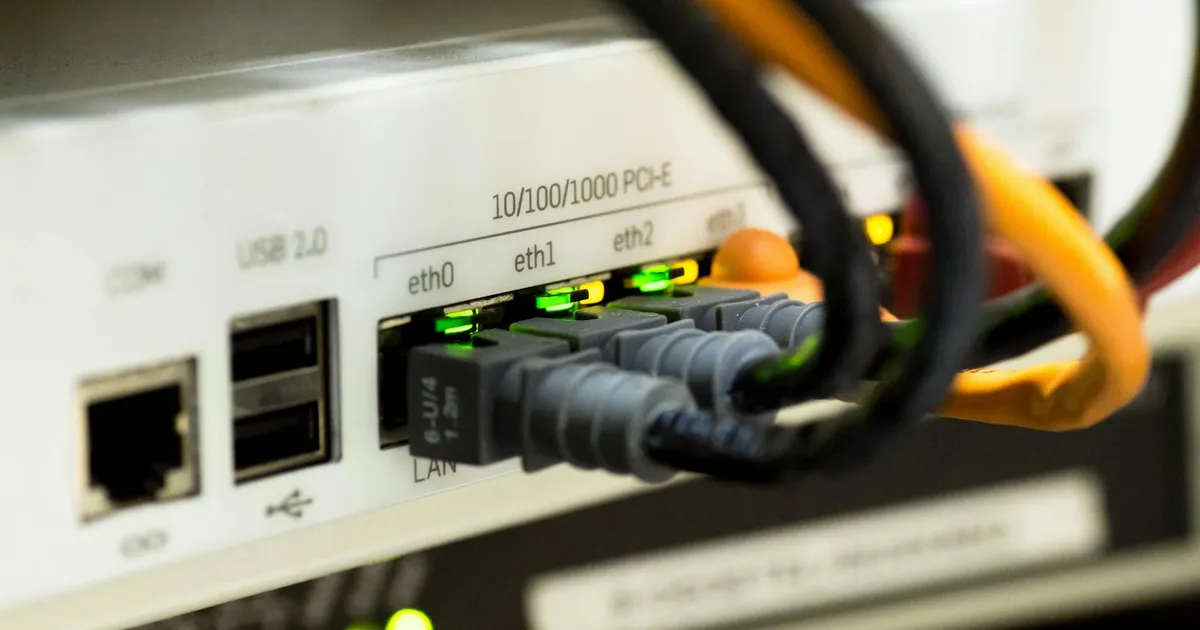
Securing your Wi-Fi network is not only important for protecting your privacy and data but also for optimizing its performance. An unsecured network can be easily accessed by unauthorized users, who can consume your bandwidth and slow down your internet speed. Always use a strong password and enable WPA3 encryption, the latest and most secure Wi-Fi security protocol. Avoid using WEP or WPA, as these older protocols are vulnerable to attacks. Additionally, consider enabling the “Guest Network” feature on your router to provide separate internet access for visitors without giving them access to your main network and sensitive data.
Regularly review the devices connected to your network and remove any unauthorized devices. Enable MAC address filtering to restrict access to only authorized devices. Another valuable security measure is disabling WPS (Wi-Fi Protected Setup), a feature often used to simplify connecting devices to a Wi-Fi network, but has known security vulnerabilities. Regularly changing your Wi-Fi password is also a good practice. By implementing these security measures, you can protect your network from unauthorized access and ensure that you have sufficient bandwidth for your own devices.
Mesh Wi-Fi Systems for Large Homes
For larger homes or buildings, a single router may not provide sufficient coverage to every corner. In these situations, consider using a mesh Wi-Fi system. Mesh Wi-Fi systems consist of multiple nodes that work together to create a seamless Wi-Fi network with consistent coverage throughout the entire space. Unlike traditional Wi-Fi extenders, mesh systems use a single network name and password, and devices seamlessly switch between nodes as you move around your home, ensuring a consistent connection.
Investing in a modern mesh Wi-Fi system can be a game-changer for households struggling with dead spots or inconsistent Wi-Fi performance. These systems offer easy setup and management through user-friendly mobile apps. They also provide advanced features like automatic network optimization and parental controls. Consider your specific needs and budget when choosing a mesh Wi-Fi system. Some popular brands offer high-performance mesh systems designed for demanding applications like 4K streaming and online gaming.
Key Takeaways

- Optimize router placement in a central, elevated, and unobstructed location.
- Upgrade to the latest Wi-Fi standard (Wi-Fi 6 or Wi-Fi 7) for improved speeds and efficiency.
- Optimize your router’s channel and bandwidth to reduce interference.
- Implement Quality of Service (QoS) settings to prioritize critical network traffic.
- Keep your router firmware updated regularly to address bugs and improve performance.
- Secure your Wi-Fi network with a strong password and WPA3 encryption.
Frequently Asked Questions

How often should I reboot my router?

Rebooting your router every few weeks can help clear its memory and resolve minor performance issues. Think of it as a regular maintenance task that can keep your network running smoothly.
What is the difference between 2.4 GHz and 5 GHz Wi-Fi?
2.4 GHz has a longer range but is more prone to interference, while 5 GHz offers faster speeds but a shorter range. Choose the frequency that best suits your needs and the distance between your devices and the router.
How do I know if my Wi-Fi is being hacked?
Signs of a hacked Wi-Fi network include slow internet speeds, unfamiliar devices connected to your network, and changes to your router settings without your knowledge. Regularly review your connected devices and strengthen your password.
What is a Wi-Fi analyzer app, and how does it work?
A Wi-Fi analyzer app scans your Wi-Fi environment and provides information about signal strength, channel usage, and interference levels. This data helps you optimize your router’s channel selection and placement for better performance.
Can upgrading my internet plan improve my Wi-Fi speed?
Upgrading your internet plan only increases the bandwidth coming into your home. While it can improve overall internet speeds, it won’t necessarily improve your Wi-Fi speed if your router is the bottleneck. Make sure your router is capable of handling the speeds provided by your internet plan.
Conclusion
By implementing these advanced Wi-Fi optimization techniques, you can significantly enhance your network’s performance and create a more stable and reliable online experience. Start with identifying potential bottlenecks, such as router placement or outdated equipment. Then, systematically apply the strategies outlined in this article, such as optimizing channel selection, enabling QoS, and securing your network. Remember that ongoing maintenance, like regular firmware updates and periodic router reboots, is crucial for maintaining optimal performance. Take control of your Wi-Fi experience and enjoy faster, more reliable internet in 2026 and beyond.