

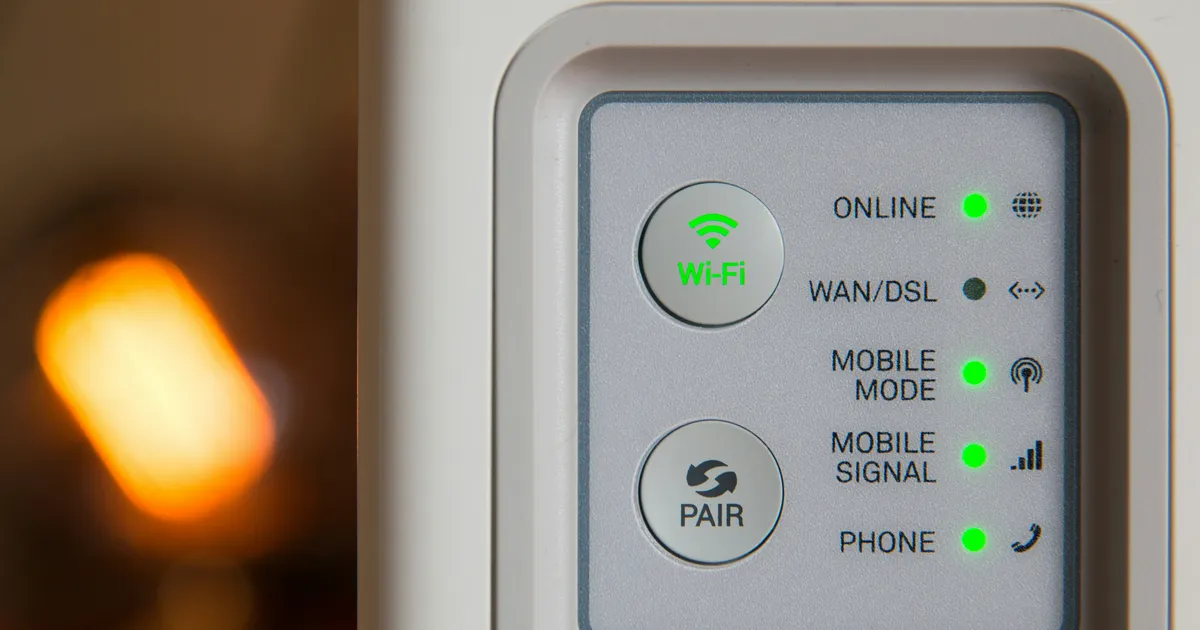

Experiencing weak Wi-Fi signal strength is a common frustration in homes and offices alike. Configuring your router correctly is crucial for optimal performance. Fortunately, several straightforward router configuration settings can significantly enhance your Wi-Fi coverage and speed instantly. By tweaking a few key parameters, you can often avoid the need for expensive hardware upgrades, and finally rid yourself of those dead zones. In this article, we’ll explore practical adjustments you can make to your router’s settings to boost your Wi-Fi signal and improve network performance in 2026.
Optimize Router Placement
The physical location of your router profoundly affects its signal strength. A router tucked away in a corner or hidden behind furniture will inevitably suffer from reduced range. Radio waves, like those used by Wi-Fi, are susceptible to interference from walls, metal objects, and even water. Placing your router in a central, elevated, and open area will allow the signal to propagate more effectively throughout your space. Aim for a location that minimizes obstructions and provides a clear line of sight to the areas where you primarily use Wi-Fi devices. A little experimentation can yield surprising improvements.
Consider visualizing your Wi-Fi signal as a sphere emanating from your router. The goal is to position the router so that this sphere encompasses as much of your desired coverage area as possible. Avoid placing the router near microwave ovens, cordless phones, or other electronic devices that operate on similar frequencies as they can cause interference. Explore different locations within your home or office, and use a Wi-Fi analyzer app on your smartphone to measure signal strength in various spots before making a final decision. For example, you could check out tools like NetSpot or Wi-Fi Analyzer.
Elevation Matters
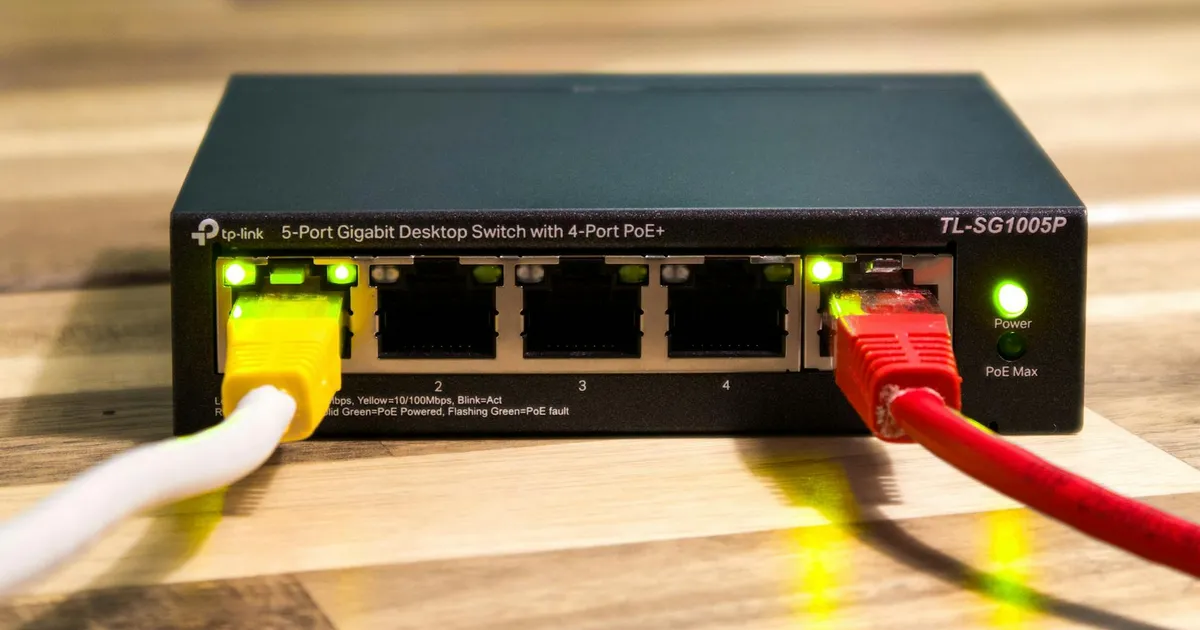
Elevation is another essential factor in optimizing router placement. Wi-Fi signals tend to propagate downwards slightly, so placing your router on a higher shelf or mounting it on a wall can improve coverage, especially in multi-story homes. Experiment with different heights to find the sweet spot that provides the best signal strength on all floors and in all rooms. A good rule of thumb is to position the router at least a few feet off the ground. In 2026, understanding placement is still a key component of good wifi.
Change the Wi-Fi Channel
Routers operate on different channels within the 2.4 GHz and 5 GHz frequency bands. Many routers are set to automatically select a channel, but this isn’t always the optimal choice. In densely populated areas, multiple Wi-Fi networks may be competing for the same channel, leading to congestion and interference. Using a Wi-Fi analyzer app, you can identify the least crowded channels in your area and manually configure your router to use one of them. This simple change can often result in a noticeable improvement in Wi-Fi speed and stability. A less congested channel means less interference and a clearer path for your data.
The 2.4 GHz band has 11 channels in North America (13 in many other parts of the world), while the 5 GHz band offers a significantly larger number of channels. When selecting a channel, it’s generally best to avoid channels that overlap with adjacent channels. For example, in the 2.4 GHz band, channels 1, 6, and 11 are non-overlapping. Experiment with these channels to see which one provides the best performance in your specific environment. Be aware that the 5 GHz band generally offers faster speeds but shorter range compared to the 2.4 GHz band.
Update Router Firmware

Router manufacturers regularly release firmware updates to address security vulnerabilities, improve performance, and add new features. Keeping your router’s firmware up to date is crucial for maintaining a secure and efficient network. Most modern routers offer a built-in mechanism for automatically checking and installing firmware updates. However, it’s a good idea to periodically check for updates manually, especially if you’re experiencing performance issues. Firmware updates often include optimizations that can significantly improve Wi-Fi signal strength and stability. Check out the manufacturer’s website for instructions.
The process of updating router firmware typically involves logging into the router’s administration interface through a web browser. The specific steps may vary depending on the router model, but usually, there’s a section labeled “Firmware Update” or “System Update.” Before initiating the update, it’s essential to back up your router’s configuration settings in case something goes wrong. Once the update is complete, it’s recommended to reboot the router to ensure that the changes are properly applied. Skipping updates leaves your router at risk.
Adjust Antenna Orientation
Many routers have adjustable external antennas that can be oriented to optimize signal coverage. This is a simple adjustment that can profoundly impact the signal strength. For single-story homes, positioning the antennas vertically often provides the best coverage. In multi-story homes, try orienting one antenna vertically and the other horizontally to distribute the signal more evenly across different floors. Experiment with different antenna orientations to find the configuration that works best for your specific layout. Small changes can make a big difference.
The principle behind antenna orientation is to align the antennas with the devices you want to connect to. If your devices are primarily located on a single floor, orienting the antennas vertically will maximize the signal strength in that direction. If your devices are spread across multiple floors, alternating the antenna orientation can help to distribute the signal more evenly. Keep in mind that the best orientation may vary depending on the specific characteristics of your home or office. By experimenting, you will find the best directionality of the signal possible. You may also consider a range extender to help increase distance.
Enable Quality of Service (QoS)

Quality of Service (QoS) is a router feature that allows you to prioritize certain types of network traffic over others. By enabling QoS and configuring it to prioritize bandwidth-intensive applications like video streaming and online gaming, you can ensure that these applications receive the resources they need to perform optimally and prevent them from hogging bandwidth and negatively impacting other devices on your network. QoS can also be used to prioritize voice over IP (VoIP) traffic for clearer phone calls.
Configuring QoS typically involves logging into your router’s administration interface and navigating to the QoS settings. You’ll then need to identify the types of traffic you want to prioritize and assign them a higher priority level. Most routers offer pre-defined QoS profiles for common applications like video streaming and gaming. However, you may also need to create custom profiles for specific applications or devices. Careful configuration of QoS can significantly improve the performance of critical applications and ensure a smoother overall network experience. Many people forget about this useful tool.
Upgrade to a Newer Router
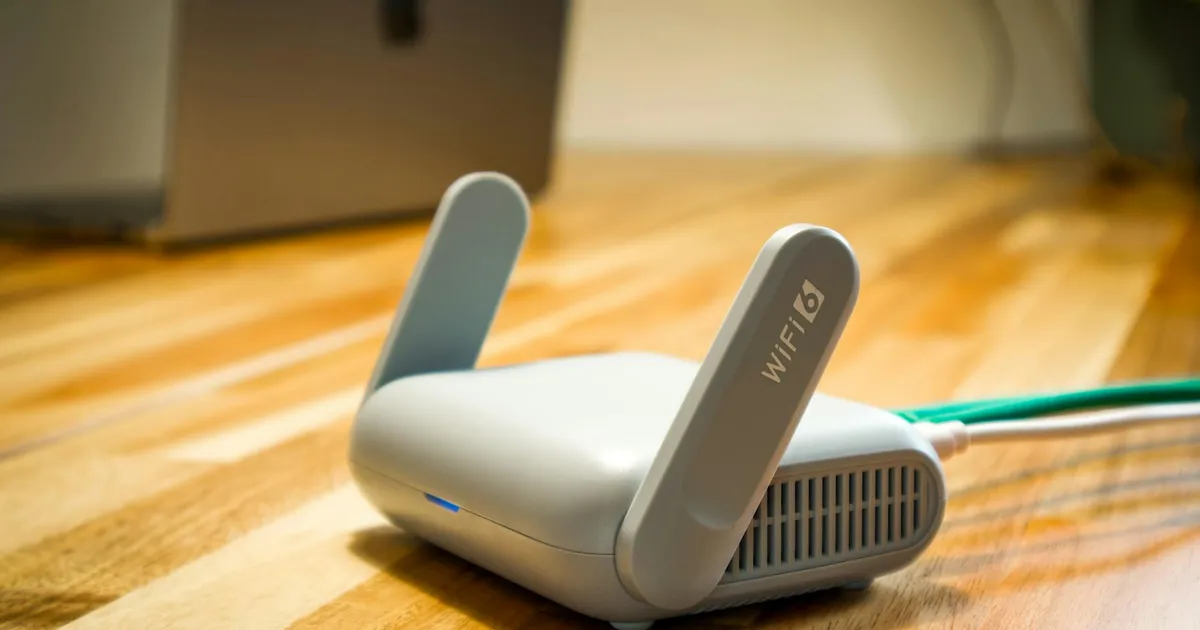
If you’ve tried all of the above steps and you’re still experiencing poor Wi-Fi signal strength, it may be time to upgrade to a newer router. Older routers may not support the latest Wi-Fi standards or have sufficient processing power to handle the demands of modern devices. Upgrading to a newer router can provide significant improvements in both speed and coverage. Look for routers that support Wi-Fi 6 (802.11ax) or Wi-Fi 6E, which offer faster speeds and improved performance in congested environments.
When shopping for a new router, consider the size of your home or office and the number of devices that will be connected to the network. For larger spaces, a mesh Wi-Fi system may be a better option than a single router. Mesh systems use multiple access points to create a seamless Wi-Fi network that covers a wider area. Also, look for routers with features like beamforming, which focuses the Wi-Fi signal directly towards connected devices, and MU-MIMO (Multi-User Multiple-Input Multiple-Output), which allows the router to communicate with multiple devices simultaneously. As of 2026, wifi 6E is the preferred standard.
Key Takeaways
- Optimize router placement for central, elevated, and unobstructed signal emission.
- Identify and switch to a less congested Wi-Fi channel using a Wi-Fi analyzer app.
- Keep your router firmware updated to benefit from performance improvements and security patches.
- Adjust antenna orientation to maximize signal coverage based on your home’s layout.
- Enable Quality of Service (QoS) to prioritize bandwidth-intensive applications for a smoother experience.
- Consider upgrading to a newer router, potentially a mesh system, for enhanced speed and coverage.
Frequently Asked Questions

How do I access my router’s settings?
You can typically access your router’s settings by typing its IP address into a web browser. The IP address is often printed on a sticker on the router itself. Common IP addresses include 192.168.1.1 and 192.168.0.1. You’ll also need the router’s username and password, which are often also printed on the sticker or can be found in the router’s documentation.
What is the difference between 2.4 GHz and 5 GHz Wi-Fi?

The 2.4 GHz band offers longer range but slower speeds, while the 5 GHz band offers faster speeds but shorter range. The 5 GHz band is also less prone to interference from other devices. The best band to use depends on your specific needs and environment. If you need maximum range, use the 2.4 GHz band. If you need maximum speed and are close to the router, use the 5 GHz band.
How often should I restart my router?
Restarting your router periodically can help to clear out temporary files and resolve minor glitches. A weekly or monthly restart might prove beneficial, but especially if you notice declining performance. Some routers even allow you to schedule automatic restarts.
What is a mesh Wi-Fi system?
A mesh Wi-Fi system uses multiple access points (nodes) to create a seamless Wi-Fi network that covers a wider area than a single router. The nodes communicate with each other to provide continuous coverage as you move around your home or office.
How can I improve Wi-Fi security?
To improve Wi-Fi security, use a strong password for your Wi-Fi network, enable WPA3 encryption, and disable WPS (Wi-Fi Protected Setup). Also, keep your router’s firmware up to date and change the default router administrator password.
Conclusion
Boosting your Wi-Fi signal does not have to be a costly affair. By implementing these router configuration adjustments, you can significantly improve your Wi-Fi performance and expand coverage throughout your home or office. From optimizing router placement and selecting the right channel to updating firmware and upgrading hardware when necessary, these small but strategic tweaks can transform your online experience. Regular maintenance and monitoring of your network will ensure that you are reaping the full benefits of your internet connection in 2026.