

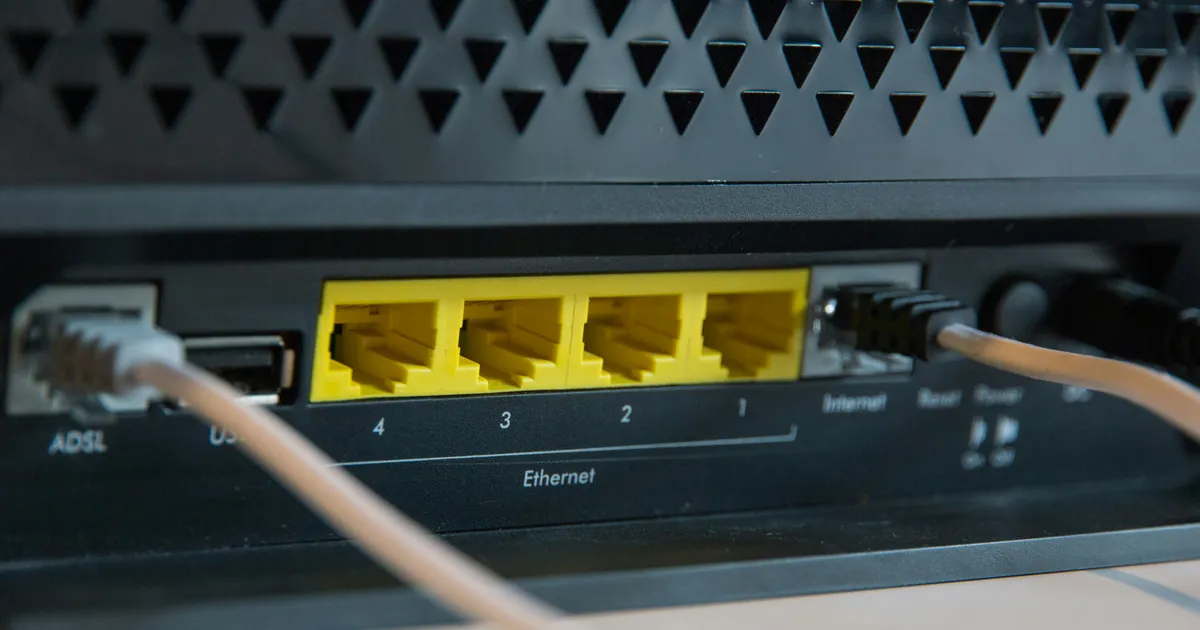

Troubleshooting a router that isn’t properly connecting to the internet can be frustrating, but with a systematic approach, most issues can be resolved. This guide provides a comprehensive set of steps to diagnose and fix common router problems, ensuring a stable internet connection. By understanding the potential causes and following a structured troubleshooting process, users can often avoid the need for costly professional assistance, saving time and money.
Check Physical Connections
Start by verifying that all physical connections are secure. Examine the cables connecting the router to the modem and the modem to the wall. Ensure that each cable is firmly plugged into the correct port, as a loose connection can disrupt the signal. A common mistake is overlooking the power cord, so confirm that the router and modem are both properly plugged into a working power outlet.
Inspect the Ethernet cables for any visible damage, such as bends, cuts, or frayed wires. Damaged cables can significantly degrade signal quality, leading to intermittent or non-existent internet connectivity. If any damage is detected, replace the cable immediately with a new, high-quality Ethernet cable. Consider testing the connection with a different cable to isolate whether the existing cable is the source of the problem. Regular maintenance of cables can help maintain a reliable network connection.
Restart Your Modem and Router
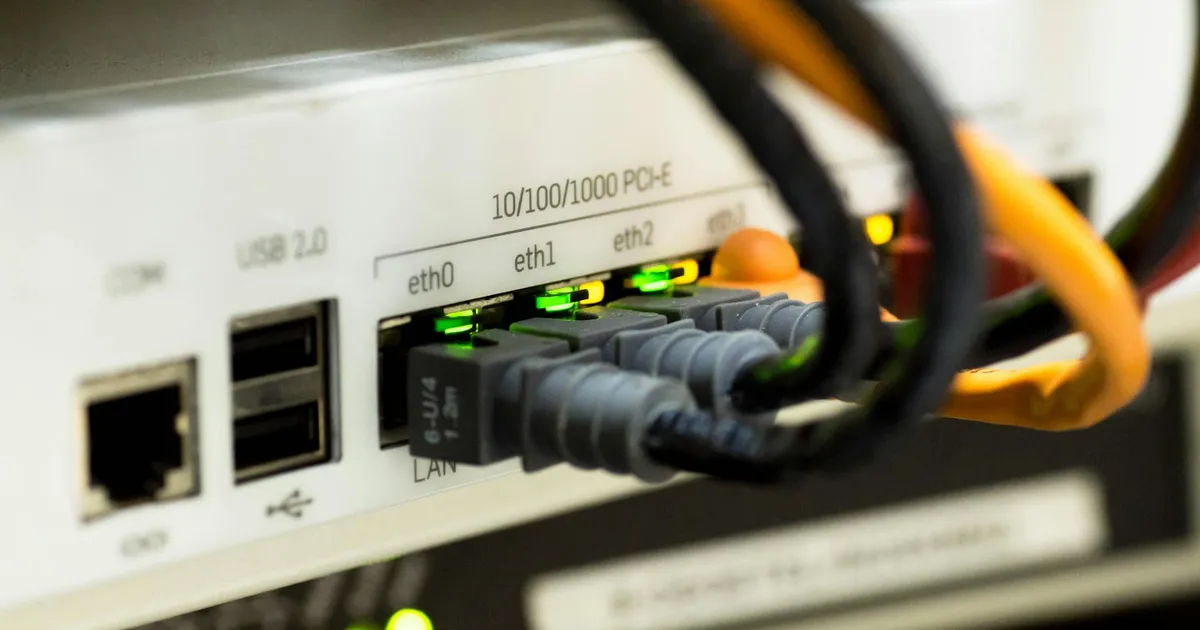
A simple restart often resolves many connectivity issues. Begin by unplugging the power cables from both the modem and the router. Wait for approximately 30 seconds to allow the devices to fully power down. This process clears temporary data and resets the devices’ configurations, which might be causing the connection problem. Many network issues arise from temporary glitches, and a reboot can clear these problems.
Plug the modem back into the power outlet first and wait for it to fully initialize. This typically takes a few minutes, indicated by the modem’s status lights turning green or blue. Once the modem is online, plug the router back into the power outlet and wait for it to initialize as well. Test the internet connection to see if the restart has resolved the issue. Regularly restarting your modem and router can help prevent minor connectivity issues from escalating.
Diagnose with Router’s Interface
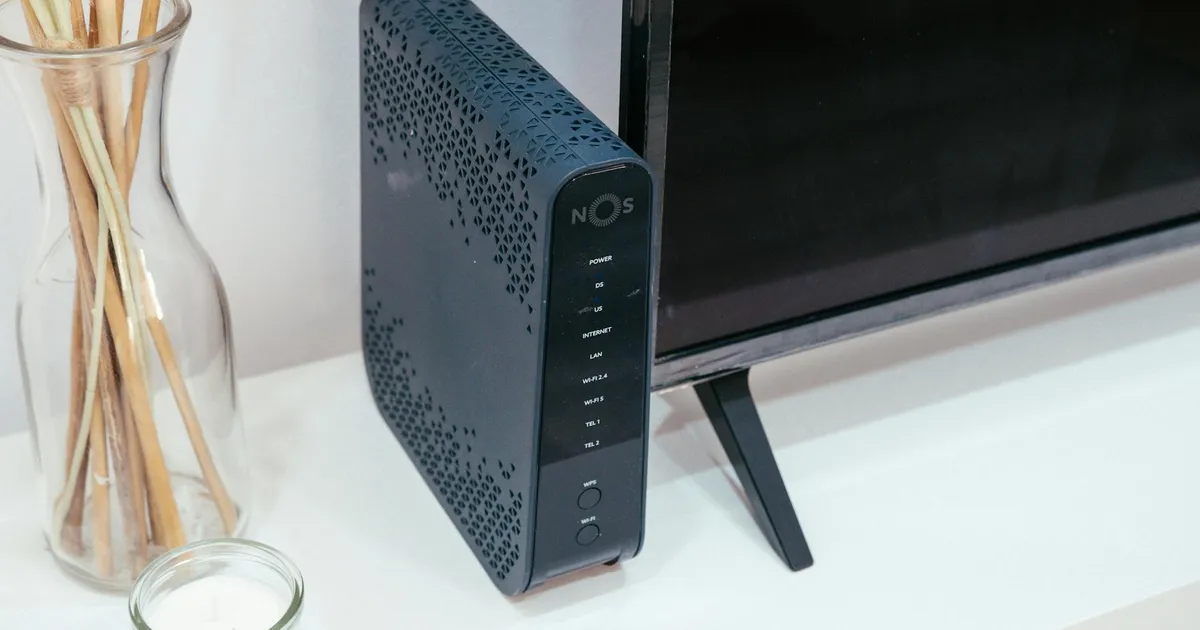
Accessing the router’s interface through a web browser provides valuable insights into its status and configuration. Typically, one can type the router’s IP address (often 192.168.1.1 or 192.168.0.1) into the browser’s address bar. The login credentials (username and password) are commonly found on the router’s label or in the router’s manual. Once logged in, navigate to the status or internet connection section. This often shows the current connection status and any error messages. Regularly checking the router’s interface is important for identifying and addressing connectivity problems.
Check the DHCP settings of the router to ensure it is correctly assigning IP addresses to connected devices. If devices are not receiving IP addresses, they cannot connect to the internet. Additionally, review the router’s logs for any unusual activity or errors that might indicate the root cause of the connection issue. For example, firmware updates or system errors might be flagged here. In 2026, many routers provide diagnostic wizards that automatically detect and resolve common network problems.
Check Your IP Address
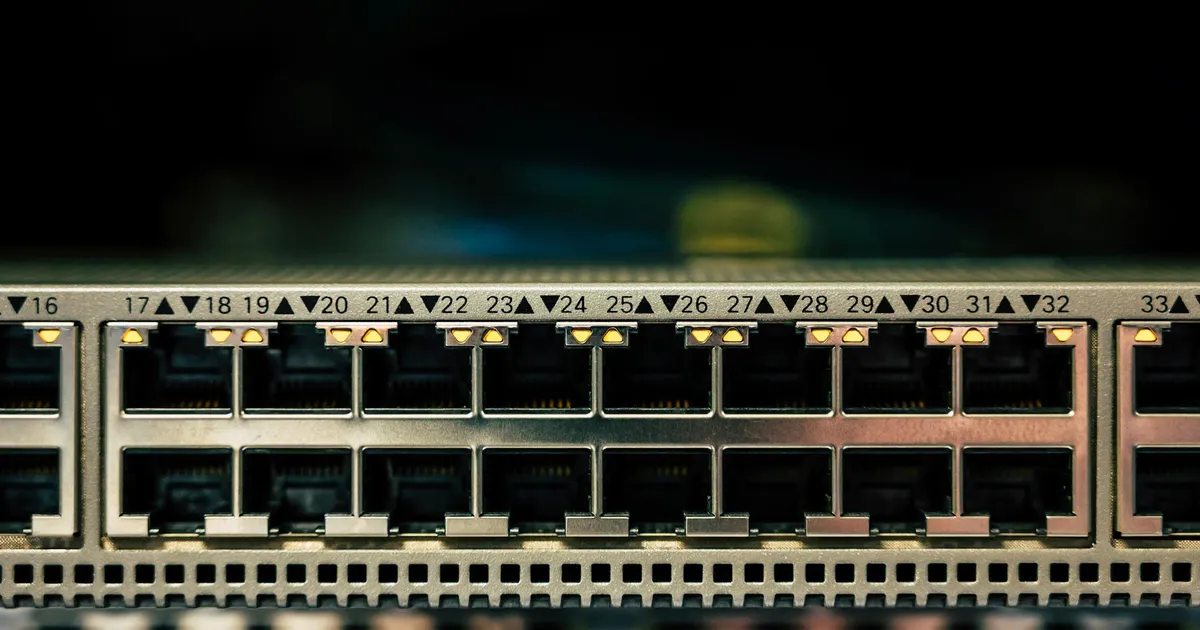
Verifying that your computer has a valid IP address is crucial for diagnosing network problems. On Windows, open the Command Prompt and use the command “ipconfig”. On macOS or Linux, use the Terminal and the command “ifconfig”. Look for the “IPv4 Address” entry; if it starts with 169.254.x.x, it typically indicates that the computer is not receiving an IP address from the router. Confirming that you have a publicly routable IP address is critical, as is ensuring that the DHCP service on your router is functioning.
If the computer isn’t receiving an IP address automatically, try manually assigning one. Choose an IP address within the same range as your router’s default gateway but outside the DHCP range to avoid conflicts. Specify the subnet mask, default gateway (usually the router’s IP address), and a DNS server address (like 8.8.8.8 for Google’s public DNS). Manually configuring IP settings can bypass issues with DHCP, and is considered best practice for certain devices on the network.
Update Router Firmware

Keeping your router’s firmware up to date is important for maintaining optimal performance and security. Outdated firmware can contain bugs or vulnerabilities that can impact internet connectivity and overall network stability. Router manufacturers regularly release firmware updates to address these issues and improve performance, which, according to Cisco, are critical for home networks. Check the router manufacturer’s website for the latest firmware version, or utilize the updating tools within the router’s web interface.
Before initiating a firmware update, back up your router’s current configuration settings to avoid data loss in case of an interruption. Follow the manufacturer’s instructions carefully during the update process. Avoid disrupting the power supply or internet connection while the update is in progress, as this can cause irreversible damage to the router and possibly void its warranty. Successful firmware updates can often resolve underlying connectivity issues and improve your router’s reliability.
Address Possible Interference

Wireless interference can disrupt the Wi-Fi signal transmitted by your router, leading to slow speeds or dropped connections. Common sources of interference include other electronic devices, such as microwave ovens, cordless phones, and Bluetooth devices. Distance from the router, as well as walls and other obstructions, can also weaken the signal. According to a report from the FCC, Wi-Fi performance can be significantly affected by external devices.
Try relocating the router to a central, elevated location, away from electronic devices and obstructions. Changing the Wi-Fi channel on your router can also help reduce interference. Use a Wi-Fi analyzer app on your smartphone or computer to identify the least congested channel in your area. Switching to the 5 GHz band, if your router and devices support it, can also minimize interference, as it operates on a less crowded frequency spectrum in 2026. Regularly assessing and mitigating potential sources of interference can greatly improve your Wi-Fi performance.
Understanding Wireless Channels
Wireless channels determine the range of frequencies your Wi-Fi network uses to communicate with devices. Overlapping channels can lead to interference, particularly in densely populated areas. Most routers offer a choice of several channels in the 2.4 GHz and 5 GHz bands. Selecting a less congested channel using a Wi-Fi analyzer app can improve performance and stability. Regularly monitoring and adjusting channel settings can optimize network performance.
Key Takeaways

- Verify all physical connections and replace damaged cables.
- Regularly restart your modem and router to clear temporary data.
- Access the router’s interface to diagnose connection status and settings.
- Ensure your devices receive valid IP addresses and configure them manually, if necessary.
- Keep your router’s firmware updated to address bugs and improve security.
- Minimize wireless interference by relocating the router and changing Wi-Fi channels.
Frequently Asked Questions
Why does my internet work sometimes but not others?
Intermittent connectivity can be caused by various factors, including wireless interference, outdated firmware, or issues with your internet service provider (ISP). Check for interference from other devices, ensure your router’s firmware is up to date, and contact your ISP to inquire about any service outages or issues in your area.
How do I find my router’s IP address?
On Windows, open the Command Prompt and type “ipconfig”. Look for the “Default Gateway” entry; this is typically your router’s IP address. On macOS, open the Terminal and type “netstat -nr | grep default”; the IP address next to “default” is your router’s IP address.
What should I do if I forget my router’s password?
Most routers have a reset button on the back or bottom. Press and hold this button for about 10-15 seconds while the router is powered on. This will reset the router to its factory default settings, including the password. After the reset, you can access the router’s interface using the default username and password (usually found on the router’s label or in the manual). Be sure to consult the manufacturer’s manual or website for this process if you need assistance.
Why is my internet slow even though I have a fast plan?
Slow internet speeds can be caused by several factors, including too many devices connected to your network, wireless interference, or outdated router hardware. Try disconnecting some devices, addressing potential interference, and consider upgrading to a newer router that supports the latest Wi-Fi standards like Wi-Fi 6 for improved performance for 2026’s standards.
How often should I restart my router?
Restarting your router every few weeks can help maintain optimal performance. Regular restarts clear temporary data, refresh the connection, and prevent minor issues from escalating. Consider scheduling a weekly or bi-weekly restart as part of your network maintenance routine. In addition, check Verizon’s guide for additional tips on optimizing home network performance.
Conclusion
Successfully troubleshooting router connectivity issues involves a methodical approach, starting with basic checks and advancing to more complex diagnostics. By verifying physical connections, restarting devices, updating firmware, and addressing potential interference, users can resolve most common problems. Regularly monitor your network’s performance and stay informed about the latest router updates to ensure a consistently reliable internet connection and a more secure smart home network; this proactive approach will minimize downtime and prevent future frustrations.