


Ah, the dreaded spinning wheel, the blank page, the utter silence where the internet once roared. I remember a particularly stressful night in 2026, staring at a looming deadline, when my connection vanished into thin air. It feels like a punch to the gut, doesn’t it? That moment of panic when you realize you’re cut off from the digital world. But fear not, because nine times out of ten, a seemingly insurmountable “no internet connection issue” is actually a straightforward fix. Over my decade-plus navigating the labyrinthine world of home networks, I’ve seen it all, and I’m here to share the battle-tested strategies that consistently bring your connection back to life. Let’s get you reconnected, shall we?
The Universal First Step: Restart Everything
It sounds almost comically simple, but a good old-fashioned restart is often the magic bullet. Your modem and router are essentially mini-computers, and just like your PC or smartphone, they can get bogged down with temporary glitches, cached data, or minor software conflicts. Power cycling them clears their memory, re-establishes their connection to your Internet Service Provider (ISP), and often resolves communication errors that prevent data flow. Think of it as hitting the reset button on your entire home network’s brain.
To perform this crucial step correctly, unplug your modem first, then your router. Wait a full 30 to 60 seconds – this isn’t a quick flick of the switch; you need to allow residual power to drain completely. Then, plug your modem back in and wait until all its indicator lights are stable (usually solid green or blue, not blinking). Once the modem is fully online, plug in your router and wait for its lights to stabilize as well. Only then should you try reconnecting your devices. This sequence is vital for a clean, proper reboot.
Check Your Cables and Connections
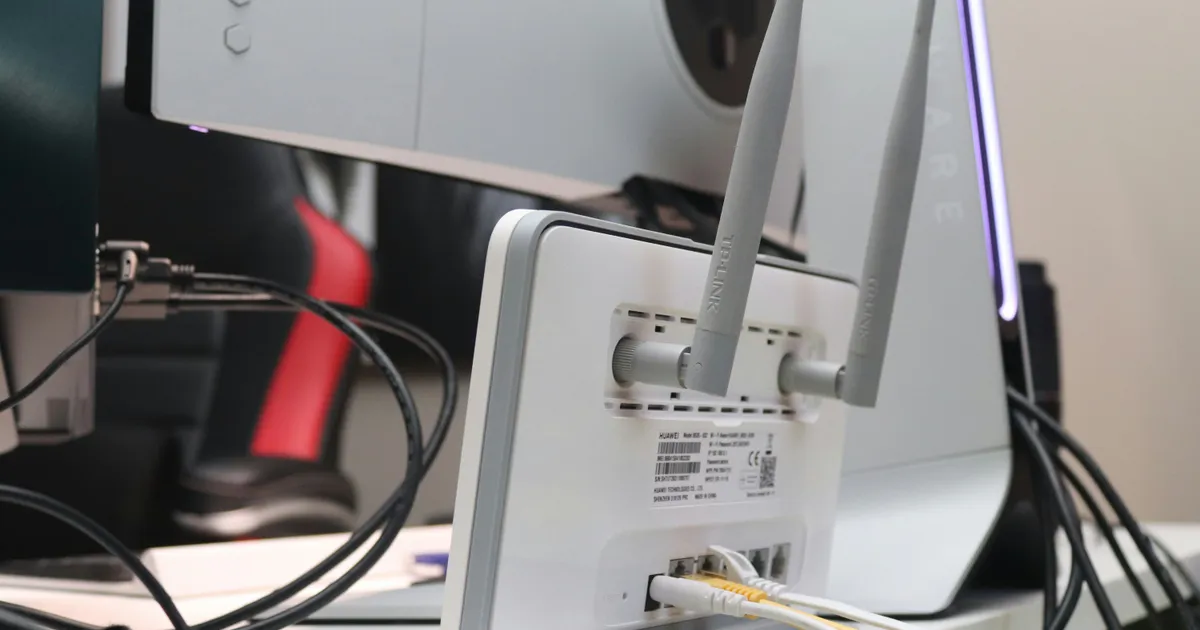
Before diving into complex diagnostics, let’s address the most fundamental aspect: physical connections. A loose or damaged cable is a surprisingly common culprit behind a “no internet connection issue.” It’s easy for cables to get jostled, especially behind desks or entertainment centers, leading to intermittent or complete signal loss. Take a moment to physically inspect all Ethernet cables connecting your modem to your router, and your router to any wired devices like a desktop PC.
Ensure every cable is securely plugged into its respective port. Listen for a satisfying click when inserting an Ethernet cable, indicating it’s locked in. Also, check the cables themselves for any visible damage – kinks, fraying, or exposed wires. If you suspect a cable might be faulty, swapping it out with a known good one is a quick diagnostic. Don’t forget the power cables for your modem and router too; a loose power connection can also cause an outage. A visual check often saves a lot of head-scratching.
Diagnose Device-Specific Issues
Sometimes, the problem isn’t with your entire network, but with a single device. If your phone connects to Wi-Fi but your laptop doesn’t, or vice-versa, the issue likely lies with that specific device’s network adapter or settings. Start by forgetting the Wi-Fi network on the problematic device and then reconnecting. This forces a fresh handshake with your router and can resolve minor authentication or configuration errors that might have crept in.
For wired connections, ensure your Ethernet cable is properly seated in both the device and the router. Check your device’s network settings to confirm Wi-Fi is enabled (not in Airplane Mode) or that the Ethernet adapter is active. Running the built-in network troubleshooter on Windows or macOS can also pinpoint and automatically fix common issues, like incorrect IP configurations or driver problems. Sometimes, a simple device restart can clear up temporary software glitches affecting connectivity.
Flush DNS and Renew IP Address
When your internet is down, but your network hardware seems fine, it’s worth looking at your device’s network configuration. Your computer uses DNS (Domain Name System) to translate website names like google.com into IP addresses. A corrupted DNS cache can prevent you from reaching websites even if you technically have an internet connection. Similarly, an outdated or conflicting IP address can cause connectivity problems. These are often easy fixes.
On Windows, open Command Prompt as an administrator and type ipconfig /flushdns, then press Enter. Follow this with ipconfig /release and then ipconfig /renew. For macOS, you can usually renew the DHCP lease in your Network preferences. These commands clear out old, potentially bad network information and request fresh configurations from your router, often resolving stubborn connectivity issues that persist after basic restarts. This step is particularly effective for “limited connectivity” errors.
Update Network Drivers and Firmware
Outdated or corrupted network drivers are silent killers of internet connectivity, especially after a system update or if you’re using an older device. Your network adapter relies on these drivers to communicate effectively with your operating system and the network. If they’re not up-to-date, you might experience dropped connections, slow speeds, or a complete inability to connect. This is a crucial, yet often overlooked, troubleshooting step for a “no internet connection issue.”
Check your computer’s Device Manager (Windows) or System Information (macOS) for your network adapter and look for any warning signs, like yellow exclamation marks. Visit your device manufacturer’s website (e.g., Dell, HP, Apple) or the network adapter manufacturer’s site (e.g., Intel, Realtek) to download the latest drivers. Similarly, your router’s firmware can become outdated. Regularly checking your router manufacturer’s support page, like Netgear Support, for firmware updates is good practice for security and performance in 2026.
When to Call Your Internet Service Provider
If you’ve meticulously followed all these steps – restarted everything, checked all cables, diagnosed device issues, flushed DNS, and updated drivers – and you still can’t get online, it’s time to bring in the big guns. The problem might be beyond your control, residing with your Internet Service Provider (ISP). There could be an outage in your area, an issue with the line coming into your home, or a problem with their equipment on their end. Don’t hesitate to reach out to their technical support.
Before you call, gather important information: your account number, modem’s serial number, and a clear description of the troubleshooting steps you’ve already taken. This will help the technician quickly diagnose the problem and avoid repeating steps you’ve already completed. They can run remote diagnostics on your line and equipment, often identifying issues that are invisible from your perspective. Sometimes, a simple reset from their end is all it takes to restore your connection. For example, Xfinity Support or other major providers offer comprehensive diagnostic tools.
Key Takeaways
- Start with the Basics: Always begin troubleshooting a “no internet connection issue” by power cycling your modem and router completely. This simple step resolves the vast majority of common network glitches and should be your go-to first solution.
- Inspect Physical Connections: Loose or damaged Ethernet and power cables are frequent culprits. A thorough visual check and ensuring all cables are securely seated can prevent unnecessary deeper troubleshooting.
- Isolate the Problem: Determine if the issue is affecting all devices or just one. This helps narrow down whether the problem is with your network as a whole, or with a specific computer or mobile device’s settings or hardware.
- Don’t Overlook Software: Outdated network drivers, corrupted DNS caches, or incorrect IP configurations can silently sabotage your connection. Regularly updating drivers and using command-line tools like
ipconfig /flushdnsare powerful diagnostic and fixative measures.
Frequently Asked Questions
Why does restarting my router fix my internet connection?
Restarting your router (and modem) clears their temporary memory, resolves IP address conflicts, and re-establishes a fresh connection with your ISP. Over time, these devices can accumulate minor software glitches or cache issues that are easily resolved by a power cycle, allowing them to function optimally again.
What if my Wi-Fi is working but I can’t access any websites?
If you’re connected to Wi-Fi but can’t browse, the problem often lies with DNS (Domain Name System) resolution. Try flushing your DNS cache (ipconfig /flushdns on Windows) or changing your DNS servers to public ones like Google’s (8.8.8.8 and 8.8.4.4). This helps your device correctly translate website names into IP addresses.
How can I check if my internet outage is local or widespread?
You can check for widespread outages by visiting your ISP’s website (if you have cellular data), using a service like DownDetector, or by asking neighbors. If others in your area are experiencing the same issue, it’s likely an ISP-side problem, and you should contact their support.
My internet drops out intermittently. What could be causing this?
Intermittent drops can be caused by Wi-Fi interference (from other devices or networks), an aging router struggling under load, outdated firmware or drivers, or even a faulty cable or splitter. Try changing your Wi-Fi channel, updating your router’s firmware, or testing with a new Ethernet cable to rule out physical issues.
Conclusion
Dealing with a “no internet connection issue” can be frustrating, but with a systematic approach, most problems are surprisingly simple to resolve. By starting with the basics like restarting your equipment and checking physical connections, then moving to device-specific diagnostics and software solutions, you’re empowered to troubleshoot effectively. Remember, you’re not helpless in the face of digital darkness. With these easy, step-by-step solutions, you’ll be back to browsing, streaming, and working online in no time, ready for whatever the digital world of 2026 throws your way.