



Experiencing slow Wi-Fi speed on multiple devices can be incredibly frustrating in 2026, whether you’re trying to work from home, stream your favorite shows, or simply browse the web. The good news is that diagnosing and fixing these issues doesn’t always require a tech expert. By systematically addressing potential causes, users can often resolve these problems and enjoy a smoother, faster internet experience across all devices.
Identify the Source of the Problem

The first step in troubleshooting slow Wi-Fi is identifying whether the problem stems from your internet connection or your network setup. Start by running a speed test on a single device connected directly to the modem via Ethernet cable. Websites like Speedtest by Ookla can provide accurate measurements of your download and upload speeds. Compare these results to the speeds you’re paying for from your internet service provider (ISP). If the wired connection is slow, the issue likely lies with your ISP, and you’ll need to contact them for support Federal Communications Commission.
If the wired connection is performing as expected, the problem probably resides within your Wi-Fi network. Consider the number of devices connected to your network simultaneously, as each device consumes bandwidth; a large number of connected devices can slow down the overall performance. Also, check whether any particular device is consuming excessive bandwidth, such as a computer downloading large files, or a streaming device playing high-resolution video. Monitor network usage with tools available on some routers or through third-party apps to pinpoint bandwidth hogs, as identified by resources such as Wi-Fi Alliance.
Check Router Placement and Interference
Router placement can significantly impact Wi-Fi performance. Ensure your router is centrally located in your home and elevated off the ground to maximize coverage. Avoid placing it near walls, metal objects, or appliances that may cause interference, such as microwave ovens or cordless phones. These obstructions can weaken the Wi-Fi signal and reduce its range. Experiment with different router positions to find the optimal location for strong signal strength throughout your home National Institute of Standards and Technology (NIST).
Optimize Your Router Settings

Accessing your router’s configuration settings and optimizing them can significantly improve Wi-Fi performance. Most routers have a web-based interface that can be accessed by typing the router’s IP address into a web browser (often found on a sticker on the router itself). Once logged in, explore several settings relating to wireless performance. One key aspect to check is the Wi-Fi channel your router is using. Overlapping channels with neighboring networks can cause congestion and slow speeds. Use a Wi-Fi analyzer app on your smartphone or computer to identify less crowded channels and switch your router to one of them.
Another important setting is the Wi-Fi standard your router uses. Older standards like 802.11g are significantly slower than newer standards like 802.11ac or 802.11ax (Wi-Fi 6). Ensure your router is using the latest standard supported by your devices. If you have older devices that only support older standards, consider creating a separate network for them to avoid slowing down the performance of your newer devices. Keep your router’s firmware updated to benefit from the latest performance improvements and security patches. Firmware updates are often available through the router’s web interface, as clarified by resources such as Electronic Frontier Foundation (EFF).
Upgrade Your Hardware
If your router is several years old, it may be time for an upgrade. Newer routers offer improved performance, better range, and support for the latest Wi-Fi standards. Consider upgrading to a mesh Wi-Fi system, which uses multiple access points to create a more robust and consistent network throughout your home. Mesh systems are particularly useful for larger homes or those with thick walls that can impede Wi-Fi signals. Many reliable routers and mesh systems are available on the market; research consumer reports and professional reviews to choose the best fit for your needs. In 2026, a reliable router is essential for a connected life Federal Trade Commission.
Additionally, ensure the wireless adapters in your devices are up to date. Older devices with outdated Wi-Fi adapters may not be able to take full advantage of the speed and features offered by your router. Consider upgrading the wireless adapters in your computers or laptops if they are significantly older. For devices that don’t require mobility, such as desktop computers, consider using an Ethernet connection instead of Wi-Fi for a more stable and faster connection, according to resources provided here IEEE.
Security Considerations
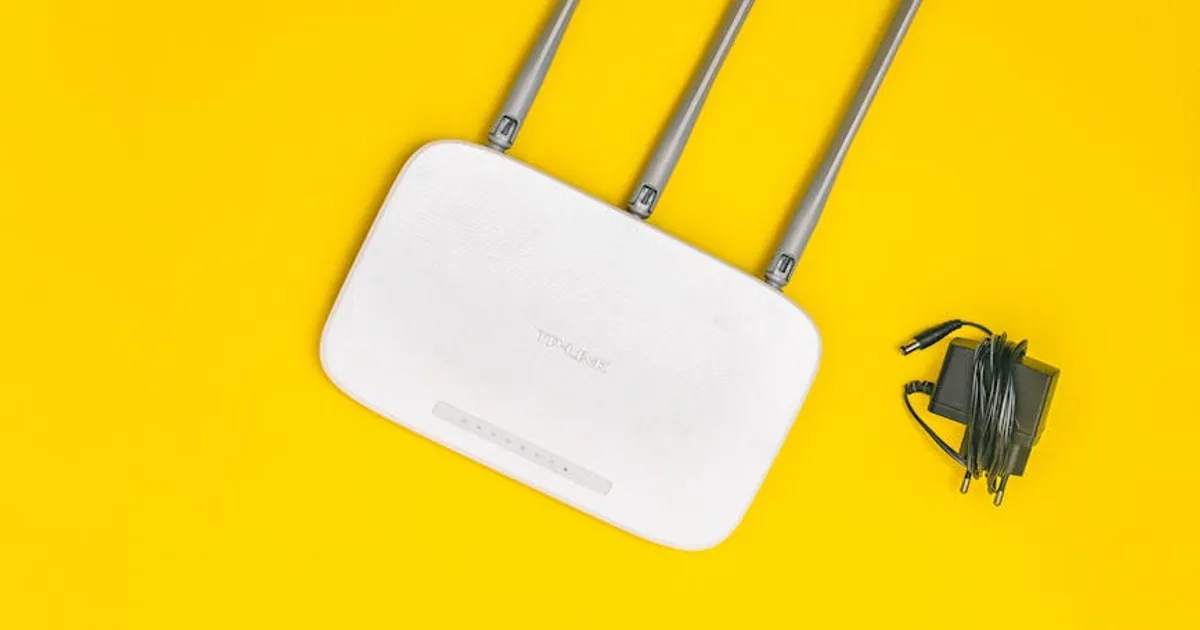
Wi-Fi security is not just about protecting your data; it also plays a role in your network’s speed. An unsecured or poorly secured Wi-Fi network can allow unauthorized users to access your network and consume bandwidth, slowing down performance for legitimate users. Ensure your Wi-Fi network is protected with a strong password using WPA3 encryption, which offers the best security. Avoid using older encryption methods like WEP or WPA, as they are easily cracked.
Regularly review the devices connected to your network and remove any that you don’t recognize. Enable your router’s firewall to protect your network from external threats. Consider using a guest network for visitors, which isolates their devices from your main network and prevents them from accessing your personal data or inadvertently introducing malware. Implementing these security measures not only protects your data but also helps maintain optimal network performance, as reinforced by cybersecurity resources such as Cybersecurity and Infrastructure Security Agency (CISA).
Software and Device Management
Sometimes, the problem isn’t with your network hardware but with the software and devices connected to it. Outdated software and drivers can cause performance issues. Ensure your devices and operating systems are up to date. Regularly check for driver updates for your network adapters, as these updates often include performance improvements and bug fixes. Close unnecessary applications running in the background that may be consuming bandwidth or processing power, which can indirectly affect Wi-Fi performance British Standards Institution (BSI).
Malware and viruses can also significantly impact your network performance. Run regular scans with a reputable antivirus program to detect and remove any malicious software. Consider using a network monitoring tool to identify suspicious activity or unusual traffic patterns on your network. Regularly clearing your browser cache and cookies can also improve performance. By keeping your software and devices optimized and secure, you can ensure they’re not contributing to slow Wi-Fi speeds.
Comparison of Troubleshooting Steps
| Step | Description | Potential Benefit |
|---|---|---|
| Speed Test | Test internet speed on wired and wireless connections. | Identifies if the issue is with the ISP or home network. |
| Router Placement | Optimize the location of the router. | Improves signal strength and coverage. |
| Router Settings | Configure Wi-Fi channel and standard. | Reduces interference and improves speed. |
| Hardware Upgrade | Upgrade router or wireless adapters. | Faster speeds and better performance. |
| Security Measures | Secure Wi-Fi network with WPA3 encryption and firewall. | Prevents unauthorized access and malware. |
| Software Updates | Update software and drivers on connected devices. | Fixes bugs and improves performance. |
Key Takeaways

- Identify whether the problem lies with your ISP or your local network.
- Optimize your router’s placement and settings to reduce interference and improve coverage.
- Upgrade your router and wireless adapters if they are outdated.
- Secure your Wi-Fi network with a strong password and encryption.
- Keep your software and drivers up to date to ensure optimal performance.
- Regularly monitor your network for suspicious activity or bandwidth-hogging devices.
Frequently Asked Questions
Why is my Wi-Fi slow even though I have a fast internet plan?

Even with a fast internet plan, multiple factors can slow down your Wi-Fi, including router placement, interference from other devices, outdated hardware, and too many devices connected to the network simultaneously. Ensuring your router is centrally located, using the latest Wi-Fi standard, and securing your network can help maximize your Wi-Fi speed.
How do I find the best Wi-Fi channel for my router?
Use a Wi-Fi analyzer app on your smartphone or computer to scan for nearby Wi-Fi networks and identify the least congested channels. Log in to your router’s web interface and manually change the channel to one that is less crowded. Periodically re-scan to ensure you’re still using the optimal channel.
What is a mesh Wi-Fi system, and how does it work?
A mesh Wi-Fi system uses multiple access points, or nodes, to create a single, unified network that covers a larger area than a traditional router. These nodes communicate with each other wirelessly to provide seamless coverage throughout your home. Mesh systems are particularly beneficial for large homes or those with thick walls that can impede Wi-Fi signals.
How often should I update my router’s firmware?
It’s generally a good practice to update your router’s firmware whenever updates are available. Firmware updates often include performance improvements, bug fixes, and security patches. Check your router manufacturer’s website or the router’s web interface for available updates.
Can my neighbors affect my Wi-Fi speed?
Yes, if your neighbors’ Wi-Fi networks are using the same channels as yours, it can cause interference and slow down your Wi-Fi speed. Using a Wi-Fi analyzer app to find a less congested channel can help mitigate this interference. Upgrading to a router that supports newer Wi-Fi standards, like 802.11ac or 802.11ax, can also improve performance in congested environments.
Conclusion
Resolving slow Wi-Fi speed on multiple devices requires a systematic approach, beginning with identifying the source of the problem and methodically addressing potential causes. By optimizing router placement and settings, upgrading outdated hardware, securing your network, and keeping software up to date, most users can significantly improve their Wi-Fi performance. While some issues may require professional assistance, in many cases, a few simple steps can restore your network to optimal speed and reliability in 2026, ensuring a smooth online experience for everyone in your household.