


There was a time, not so long ago, when my home Wi-Fi was an absolute nightmare. Pages loaded at a snail’s pace, video calls froze mid-sentence, and online gaming was a laughable concept. I blamed my ISP, the weather, even sunspots – everything but the true culprit: my poorly configured router. That frustrating experience taught me a valuable lesson: a robust internet connection starts with a properly set up and secured router. This isn’t just about getting online; it’s about building the foundation for your entire digital life. Forget complicated jargon; this router setup guide will walk you through each step, ensuring you’re connected quickly and securely, even if you’ve never touched network hardware before.
Unboxing and Initial Connections
The first step in any successful router setup guide begins with the unboxing ritual. Carefully remove your new router from its packaging, along with the power adapter and the included Ethernet cable. Before plugging anything in, find a central location in your home, ideally elevated and away from large metal objects, microwaves, and cordless phones, which can interfere with Wi-Fi signals. This optimal placement significantly impacts coverage and speed, setting the stage for a reliable network throughout your living space. Think of it as placing a lighthouse in the best possible spot for maximum visibility.
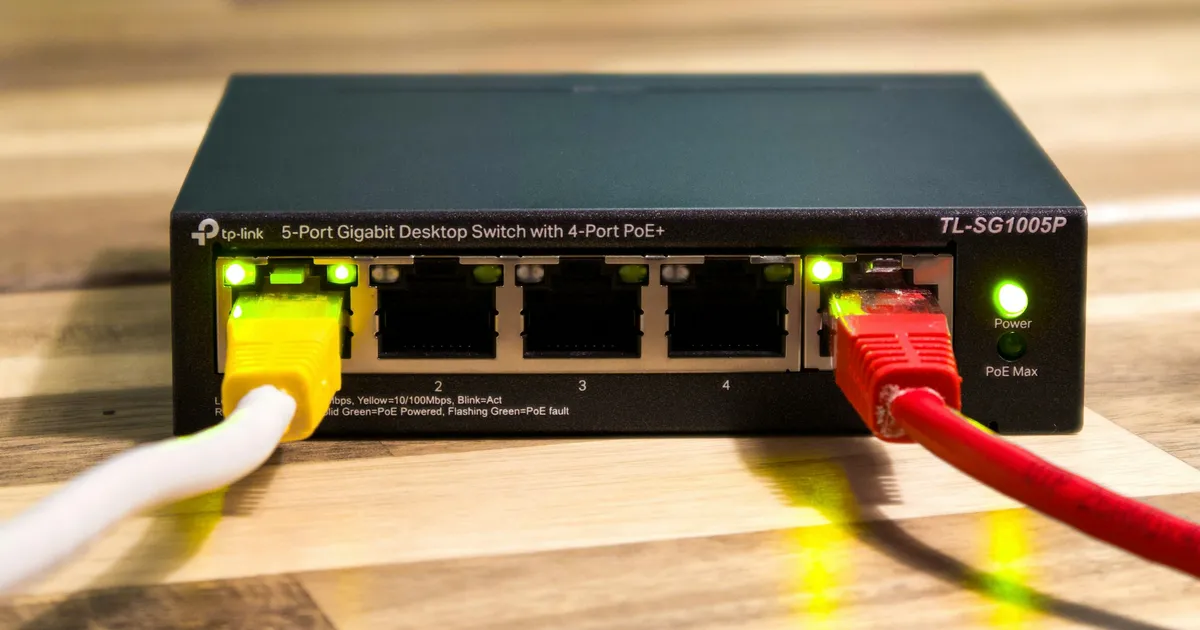
Next, it’s time to connect the essentials. Locate your modem (the device that brings the internet into your home, usually from your ISP). Connect one end of the included Ethernet cable to the modem’s LAN/Ethernet port and the other end to your router’s WAN/Internet port. This port is typically a different color or clearly labeled. Finally, plug the power adapter into your router and then into a wall outlet. Give your router a few minutes to boot up; you’ll usually see indicator lights stabilize, signifying it’s ready for the next configuration steps.
Accessing Your Router’s Web Interface
Once your router is powered on and connected to your modem, the next crucial step is accessing its web-based configuration interface. This “brain” of your router is where you’ll customize all its settings. To do this, connect a computer directly to one of the router’s LAN ports using another Ethernet cable. Alternatively, you can connect wirelessly to its default Wi-Fi network, which usually has a generic name (SSID) and password printed on a sticker on the router itself. Open any web browser (Chrome, Firefox, Edge) and type the router’s default IP address into the address bar. Common default IPs include 192.168.1.1 or 192.168.0.1, but always check the sticker or manual for your specific model.
After entering the IP address, you’ll be prompted for a username and password. Again, these default credentials are found on the router’s sticker or in the documentation. Common defaults are “admin” for both, or “admin” for the username and “password” for the password. Immediately change these default credentials once you gain access. This is a critical security step. Leaving the default login makes your router an open invitation for unauthorized access, potentially compromising your entire home network. A strong, unique password here is non-negotiable for modern home network security in 2026.
The Core Configuration: Wi-Fi & Passwords
With access to the router’s interface, your primary task is to configure your Wi-Fi network. Navigate to the “Wireless” or “Wi-Fi Settings” section. Here, you’ll first want to change the default Wi-Fi network name (SSID) to something personal and easily recognizable, but avoid using identifying information like your full name or address. Next, and most importantly, set a strong, unique password (also known as a passphrase or network key) for your Wi-Fi. This password should be a minimum of 12-16 characters, combining uppercase and lowercase letters, numbers, and symbols. Resist the urge to use simple, guessable phrases.
Choosing the Right Security Protocol
When selecting the security protocol for your Wi-Fi, always opt for the strongest available. In 2026, this will almost certainly be WPA3, which offers superior encryption and protection against brute-force attacks compared to its predecessors. If WPA3 isn’t available on your router or some older devices, choose WPA2-PSK (AES). Avoid WPA or WEP entirely, as these are severely outdated and easily compromised, leaving your network vulnerable. A robust security protocol ensures that only authorized devices can connect to your network, safeguarding your data from potential eavesdroppers. For a deeper dive into Wi-Fi security standards, you can consult resources like the Wi-Fi Alliance website.
Beyond Basics: Essential Security Enhancements
Beyond changing default passwords and setting up Wi-Fi, several other configurations are paramount for a secure home network. Always ensure your router’s firmware is up to date. Firmware is the operating system of your router, and manufacturers frequently release updates that patch security vulnerabilities and improve performance. Check for a “Firmware Update” or “Maintenance” section in your router’s interface. If an update is available, follow the instructions carefully to install it. This proactive measure can prevent many common exploits.
Another crucial step is to enable your router’s built-in firewall. Most modern routers come with a firewall enabled by default, but it’s always wise to verify. The firewall acts as a barrier, inspecting incoming and outgoing network traffic and blocking anything suspicious, protecting your connected devices from external threats. Additionally, consider disabling remote management if you don’t specifically need to access your router’s settings from outside your home network. This closes off a potential entry point for attackers, further hardening your network’s defenses against unauthorized access.
Testing, Troubleshooting, and Maintenance
Once you’ve completed the initial setup and security configurations, it’s time to test your network. Connect all your devices – smartphones, tablets, smart TVs, and computers – to your new Wi-Fi network using the strong password you created. Browse websites, stream videos, and test download/upload speeds using an online speed test. This helps confirm that your network is functioning correctly and performing as expected. If you encounter any issues, don’t panic; troubleshooting is a normal part of the process.
Common troubleshooting steps include restarting both your modem and router (power cycling them), checking all cable connections, and verifying your Wi-Fi password. If speeds are slow, try repositioning the router or adjusting its antenna orientation. Regular maintenance, such as periodically checking for firmware updates and reviewing connected devices in your router’s interface, will keep your network running optimally and securely for years to come. Remember, a well-maintained router is a happy, secure router, ready for whatever 2026 throws at it.
Key Takeaways
- Strategic Placement is Key: Position your router centrally and optimally to maximize Wi-Fi coverage and minimize interference throughout your home.
- Prioritize Default Credential Changes: Immediately update the default login username and password for your router’s web interface to prevent unauthorized access.
- Strong Wi-Fi Security is Non-Negotiable: Use a robust, unique passphrase (12-16+ characters) for your Wi-Fi and always select WPA3 (or WPA2-PSK AES) as your security protocol.
- Stay Updated and Vigilant: Regularly check for and install firmware updates, ensure your router’s firewall is active, and periodically review connected devices for unknown entries.
Frequently Asked Questions
What is the difference between a modem and a router?
A modem connects your home network to the internet service provider (ISP) network, essentially translating the internet signal. A router, on the other hand, creates a local network within your home, allowing multiple devices to share that internet connection wirelessly (Wi-Fi) or via Ethernet cables.
How often should I update my router’s firmware?
You should check for firmware updates at least every few months, or whenever your router manufacturer announces a critical security patch. Keeping your firmware current is vital for security and performance, ensuring your router is protected against the latest threats.
Can I improve my Wi-Fi speed without buying a new router?
Yes! Improving router placement, ensuring strong security settings, updating firmware, and using a less congested Wi-Fi channel can significantly boost performance. Also, consider removing older, slower devices from your network if they are dragging down overall speeds.
Is it safe to disable my Wi-Fi network when not in use?
While disabling Wi-Fi when not in use can theoretically reduce exposure to threats and save a tiny bit of power, for most users, the security benefits are minimal compared to the inconvenience. A properly secured Wi-Fi network with WPA3 encryption provides ample protection without needing to constantly toggle it off.
Conclusion
Setting up your router might seem daunting at first, but by following this step-by-step router setup guide and implementing the security tips, you’ve not only established a reliable internet connection but also fortified your digital fortress. A well-configured and secure router is the unsung hero of the modern smart home, providing the backbone for all your online activities. Take pride in knowing you’ve built a strong, private, and efficient network. Enjoy the peace of mind that comes with a robust, secure internet experience, ready for all your online adventures in 2026 and beyond.